Bittorrent on A.C.Ryan PlayOn!HD (36)


    September 17th, 2009 | Tags: , , , , , ,

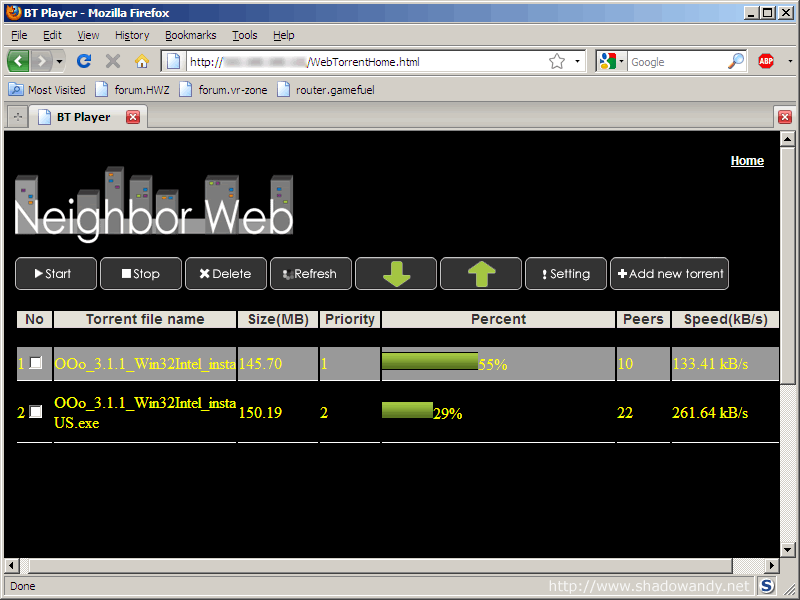
    btpd_speedtestTotal speed of 395kBps on the A.C.Ryan PlayOn!HD

    Are you having slow speeds for the BitTorrent on the A.C.Ryan PlayOn!HD Media Player? Saw quite a handful of discussion regarding the slow speed and decided to tweak the settings a bit. I managed to find some time this evening to toy with the media player. After 15 minutes of digging and tweaking, I managed to clock 395kBps using the BitTorrent on the A.C.Ryan PlayOn!HD.

    Some information I found:

    • BitTorrent program is btpd
    • btpd is commonly found in appliances that supports BitTorrent
    • btpd on the A.C.Ryan PlayOn!HD doesn’t support encryption
    • A.C.Ryan had implemented it to run off default port (6881)
    • A.C.Ryan PlayOn!HD’s web interface doesn’t allow user to change the default BitTorrent port

    Personally, I feel that running BitTorrent off default port is a bad idea as most Internet Service Provider (ISP) throttles BitTorrent traffic. Running off default port just makes it easier for ISP to identify and throttle the speed. Therefore, we would want to change this port number to allow BitTorrent to pick up some speed. Another important point to note is that the btpd on the media player doesn’t support encryption. So the BitTorrent traffic can easily be identified by the clever network devices our ISPs have and speed will drop again.

    Another point – appliances have limited resources. These media players are not as powerful as our personal computer hence we might wish to optimize the available resources. One way to keep resource usage under control is to limit the number of peers the BitTorrent would connect to. More peers generally means higher speed but more peers definitely means more resources being consumed. Less available resources generally means lower speed. Go figure where is your balance.

    In this guide, we will be changing the BitTorrent port to 12345. If you would like to use another port, just replace every instance of 12345 with your own port number. I would be limiting the number of peers to 48. Just change this number to your liking. If you have a router, do remember to do the necessary port-forwarding.

    Disclaimer: Follow at your own risk. By continuing, you know what you are doing and you don’t hold the author responsible.

    Finding out your A.C.Ryan PlayOn!HD’s IP

    1. Press the “Setup” button on your remote controller
      The setup screen should appear
    2. Scroll to the “Network” tab
      Configurations for Network should appear
    3. Take note of the IP address you see on the Network tab

    Now you have the IP address of your A.C.Ryan PlayOn!HD. Mine is 192.168.1.100. Yours could be different. In the next section, replace <IP> with your A.C.Ryan’s IP address.

    Gaining shell access to your A.C.Ryan

    1. On your computer, start Command Prompt
      A black command prompt window should appear
    2. Type in the following without the quotes “telnet <IP>“. Press <Enter>. For example, “telnet 192.168.1.100″
      You should be greeted by the prompt “PlayonHD Login:”
    3. Login using the username “root” without the quotes and press <Enter>
      You should see a warning and the prompt “/ “

    Great. You have gained shell access to the A.C.Ryan PlayOn!HD media player. Next we will edit the startup script for btpd to include the port number.

    Backing up the shell script

    1. In the same command prompt, type in the following without the quotes “cp /tmp/hdd/root/script/btpd   /tmp/hdd/volumes/HDD1/btpd.old
    2. Type the following without the quotes “ls /tmp/hdd/volumes/HDD1
      You should see btpd.old as one of the files

    Great! The original has been backed up. Time to proceed to the next step

    Editing the shell script for btpd

    1. In the same command prompt, type in the following without the quotes “vi /tmp/hdd/root/script/btpd“. Press <Enter>
      A chunk of text starting with “#!/bin/sh” should appear on the screen
    2. Type in the following without the quotes “/#start“. Your text will appear the lower left corner of the screen. Press <Enter>
      You should reach line 158/207
    3. Move down another 2 lines using your keyboard arrow keys
      You should reach line 160/207 and see “$btpdbin”
    4. Type in the following without pressing <Enter> “i
      Symbol on lower left hand corner changes from “-” to “I”
    5. Go to the end of the line using the keyboard <End> key
    6. Leave a character space before typing the following “ -p 12345 –max-peers 48“. Replacing 12345 with your desired port number and replacing 48 with the number of max peers you want.
      Line 160/207 should look like “$btpdbin -p 12345 –max-peers 48″
      Note: For the –max-peers. There are 2 dashes before the max, not 1.
    7. Press the keyboard <Esc> key
      Symbol on the lower left hand corner changes from “I” to “-”
    8. Type the following without the quotes “:wq“. Press <Enter>
      You should see the prompt “/ #”

    Checking if it is correct!

    1. In the same command prompt, type in the following without the quotes “ps | grep btpd“. Press <Enter>
      You should see the unedited process listed “/tmp/package/btpd/bin/btpd”
    2. Type the following without the quotes “/tmp/hdd/root/script/btpd stop“. Press <Enter>
    3. Type the following without the quotes “/tmp/hdd/root/script/btpd status“. Press <Enter>
      You should see “btpd stopped…”
    4. Type the following without the quotes “/tmp/hdd/root/script/btpd start“. Press <Enter>
    5. Type the following without the quotes “/tmp/hdd/root/script/btpd status“. Press <Enter>
      You should see “btpd running”
    6. Type the following without the quotes “ps | grep btpd“. Press <Enter>
      You should see “/tmp/package/btpd/bin/btpd -p 12345 –max-peers 48″

    Congrats! The port has been change to your desired port!

    Do the necessary port forwarding on your router (if you have one) and cross your fingers and hope bittorrent picks up speed.

    Oops. Something went wrong

    If the script complaint of some errors in the section “Checking if it is correct”. Just revert to the copy you have backed up earlier using the command “cp /tmp/hdd/volumes/HDD1/btpd.old /tmp/hdd/root/script/btpd“. Viola!
    Share it on del.icio.us


    36 responses

    1. cool! another optimisation done.. :)

       
    2. wenwei,

      Yeah! Wanna get this device too? Then we can explore it. :D

       
    3. Hi,

      I follow your steps but I don’t see the final line of “/tmp/package/btpd/bin/btpd -n 12345 –max-peers 48″ but I see “/tmp/package/btpd/bin/btpd -p 12345 –max-peers 48″
      Could you tell me what is the difference?

       
    4. Kay,

      should be -p. Missed that out while typing the guide.

       
    5. Andy, you can get this device at Sim Lim Square around $210 without harddisk wor~

       
    6. A bit complicated using Telnet. I modified backuped btpd on the network drive with a text editor and upload it back to /root. Save a lot of command typing:D

       
    7. Eric,

      That’s cool. But do take note that windows editor tends to add in some line breaks which messes up the shell scripts.

       
    8. Hi

      I am also looking for AC Ryan Play HD. Can you please advise where in SLS that I can get around $210.

      Can any of you advise me if this box is able to use remote acess.

      Thanks for helping

       
    9. jack,

      Asked Richard last week about the shop, he mentioned that he saw it at MediaMart.

      If you port forward correctly, you would be able to access the web ui and telnet remotely.

       
    10. Hi Shadowandy

      I called the shop n they only offer @229 instead of 210. Will you able to tell me the video performance when output to the plasma or LCD Tv.

      Can advise if it need to turnon the tv to view the playlist or there is a shortcut menu to acess during music/mp3 playback.

      Thanks

       
    11. jack,

      I feel that S$229 is also a good price. Video performance depends on the file you are playing.

      I am pretty new to media players but on the controller there is a music button. I guess you can use that to navigate blindly and play your musics.

       
    12. Great tip!!
      My download speed was useless, never more than 10Kb/s
      After changing the port it goes up to 650Kb/s

      Thanks!!

       
    13. which port to select ?

       
    14. Peter,

      Wow that’s nice

       
    15. Yeo,

      Some random port? If you can’t think of any. Try 12345

       
    16. Hi shadowandy,
      I had follow all you steps, everything is ok until “checking if its correct”:
      step 5:after type start to turn on btpd, but I can’t see “btpd running”, then go forward to step 6:ps | grep btpd“. I’m able to see “/tmp/package/btpd/bin/btpd -p 12345 –max-peers 48″

      Did I change the port already??
      I had try to start the btpd in AC Ryan, it can be start but can’t feel any changes on the download speed.
      Btw, what do you mean port forwarding on the router? How to do the port forwarding if necessary?

      Thanks in advance.

       
    17. toh,

      Yes. You have changed the port already. As for the port forwarding on your router, it is best that you consult the router’s manual or call up the help desk.

       
    18. After changing the port if i only enable uPnP in router is that ok (instead of port forwarding) ???

       
    19. Great thanks.

       
    20. Hi Shadowandy,
      I have another device with BT download but it does not have a internal harddisk.

      The btpd (in /usr/local/bin) command looks like is residing in the flash memory and cannot be changed. Is there a way to add a auto script (like in backdoor) to set to run btpd in the external harddisk? My harddisk is mounted as /tmp/usbmounts/sda1.

      TIA

       
    21. tedge,

      What is the device? There are ways to write to flash (/dev/mtd1) though.

       
    22. Hi Shadowandy,

      The device is a network media player (Astone AP-100).

      It would be helpful if you could provide some steps on how to modify the btpd script file (by writing to flash or changing the script file path to external harddisk).

      thanks,
      tedge

       
    23. Hi,

      The linux system running on the ac ryan is pretty the same of the mvix ultio, just used these steps to configure my btpd on ultio. Have anyone successfully installed the latest version of btpd?

       
    24. HI,

      Does ACRyan HD only works with internal HDD for BT download?
      Has anyone manage to make it work with external USB HDD?

      Thanks.

       
    25. good trick ,thx

       
    26. Shadowandy, have seen your posts about A C Ryan playon player. I recently got it too.. hows your player doing ? mine keep hanging and I have to unplug it. Its quite irritating, just wanted to check with you how your’s is doing. I might have to get it changed.
      if possible. do mail me your phone number, I’d like to talk to you.

       
    27. Vaibhav,

      My acryan media player is doing fine. Didnt encounter reboots or whatever. However, my power unit did fail once and I got it changed at acryan office. Probably you can have your set checked by them?

      You can post your queries here or mail me. :)

       
    28. groot
      it works

      is it possible to view the youtube movies?

      thanks

       
    29. Hi,

      I just purchased the AC Ryan PlayonHD. I am currently (no flamming :D ) a 1mbps starhub connection. I use a Asus-500gP V2 wireless router. The AC Ryan is wired directly to the router.

      I have followed all the steps to change the btpd settings on the AC Ryan, and I think I have done the necessarry port forward on the router :

      (Under Virtual Server)
      I set up a rule with
      - service name as “btpd”
      - Port Range as “12345″
      - Local IP as “192.168.1.2″ >> that’s the AC RYAN
      - Local Port as “12345″
      - Protocol as “BOTH” >> UDP and TCP

      The torrent I was trying to download still ran at about 1-2 kb/s. I am not expecting a miracle with the speed my connection is at, but is 1-2 kb/s a norm for the Starhub 1mbps line? I am still thinking of taking up the 12mbps line, but first I would like to know if the current line I got can be improved. Thanks for any help anyone can give me.

       
    30. I followed the steps until the part on editing the btpd shell script. I could see only 96 lines of the script and could not find anything that looks like the line 160 mentioned. Please help!
      At the current settings, my torrent speeds are at 5kB/s and peers connected are like less than 20 even there are many seeders.

       
    31. Hi Shadowandy,

      Thanks for your information on the AC RYAN.

      I have a Woxter I-cube 750, and installed the firmware from the AC RYAN Playon! I tried to edit the script configsamba, because i wanted the see the connected USB-drive in the network. What i didn’t read at first (so too late) is that my player doesn’t have a hdd.
      So, i guess something went wrong. I think the script is not working correctly anymore. Can I solve this by reinstalling the samba_3.0.23c_mispel.ipk?

      Thanks for your answer!

      Kindly regards,

      Ivo

       
    32. Seph,

      The guide was based on the script that was packaged along with older firmware. Let me check the new script and update the guide appropriately.

       
    33. Ivo,

      Yes. You can uninstall the ipk, do a reboot and reinstall the ipk package again to revert things to original settings.

       
    34. Hi,
      is there any way how to install transmission on A.C.Ryan instead of btpd?
      Trasmission has more features, see http://www.transmissionbt.com/
      and also nice remote gui http://code.google.com/p/transmisson-remote-gui/
      Thanks

       
    35. i receive ” telnet is not recognized as an internal or external command,operable program or batch file ‘ erroe

       
    36. evo,

      You might be on vista or windows 7 without the Telnet Client option.

      Follow the following instructions to turn on telnet client.

      1) Start | Control Panel | Programs and Features
      2) Select “Turn Windows features on or off.”
      3) Select the Telnet Client option and click OK.


    Leave a reply


    Send a trackback.

    Comments will be closed on February 19, 2011.


    RSS Feeds


    Treat shadowandy!


    Like to treat shadowandy a cup of Starbucks?

    Polls


    Which is your preferred SOHO networking brand?

    • D-Link (48%, 225 Votes)
    • Linksys (27%, 126 Votes)
    • Cisco (12%, 57 Votes)
    • Netgear (7%, 34 Votes)
    • Buffalo (2%, 9 Votes)
    • TRENDnet (1%, 6 Votes)
    • PCI (1%, 5 Votes)
    • Planex (2%, 3 Votes)

    Total Voters: 465

    Loading ... Loading ...

    Recent Comments


    Friend's Blog


    Interesting Links


    Previous Postings


    Copyright © 2005 - 2010 www.shadowandy.net  96 queries. 0.423 seconds.Go back up ↑