Fixing the macOS 10.13.6 Security Update 2019-007 Black Screen
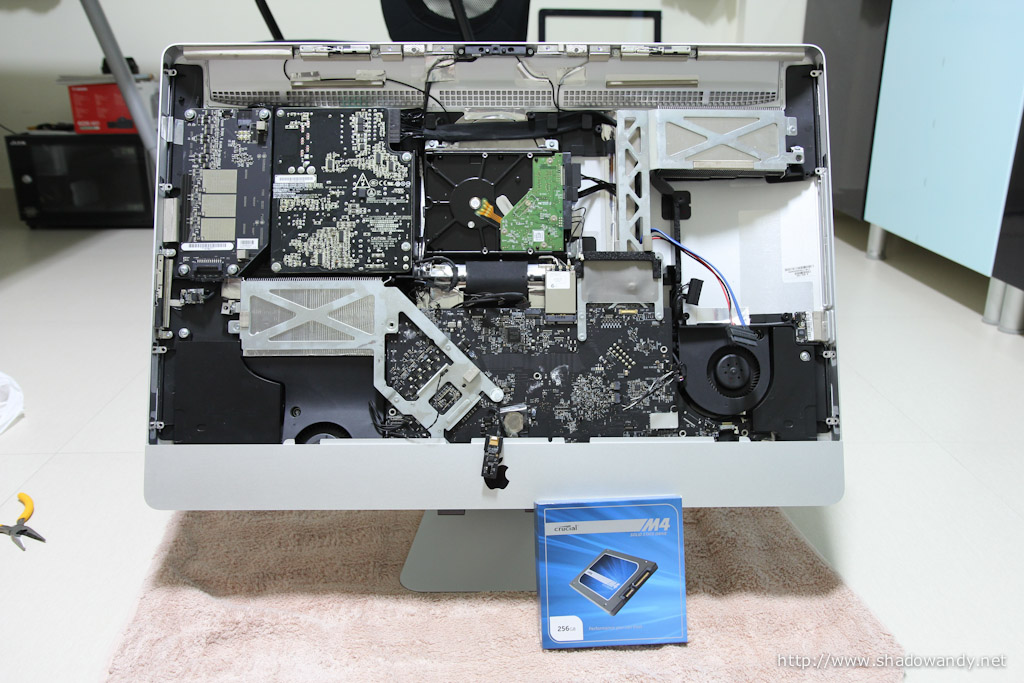
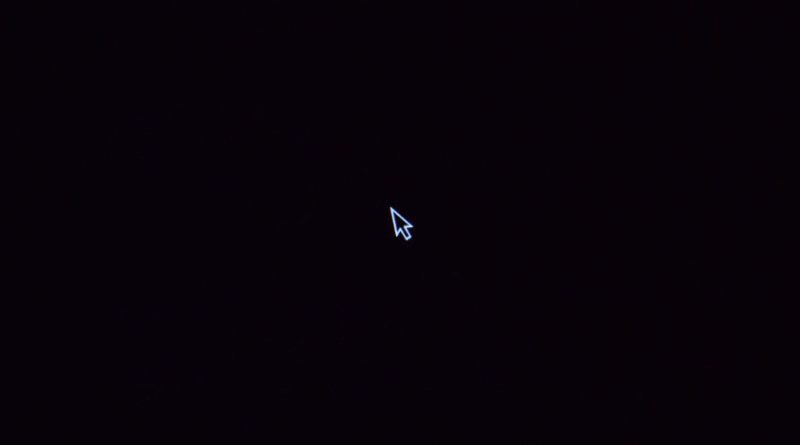
My iMac 27-inch (mid-2011) is still working well. For some unknown reason(s), I’ve been unable to apply the macOS 10.13.6 (High Sierra) Security Update 2019-007. It will simply “halt” during the reboot phase, leaving me with a black screen with cursor. The most irritating part is that I cannot uninstall nor (re)install the Security Update and it continues to halt my iMac at the black screen at every shutdown or reboot. I had to force shutdown by holding on the power button every single time until I came across a fix for failed Security Updates on Apple’s forum.
I tried using OynX‘s maintenance and it doesn’t fix the problem. However, the above documented fix does! The most amazing part is that the fix is still applicable after more than a year! The commands are pretty harmless. Below, I try to give a glimpse of what each of the command does
Fixing the Apple Security Update Black Screen
To fix the Apple Security Update black screen with cursor problem, pull up a Terminal and run the following commands.
# Deleting the current user's caches
rm -rf ~/Library/Caches/*
# Deleting the macOS launch services database(s) and recreating them
sudo /System/Library/Frameworks/CoreServices.framework/Frameworks/LaunchServices.fra mework/Support/lsregister -kill -seed -lint -r -f -v -dump -domain local -domain system -domain user -domain network
# Restarting the macOS Dock
killall Dock
# Reindexing Spotlight
sudo mdutil -E /
# Rebooting the system. Have replaced it with a command instead
sudo shutdown -r now
# Running the software update to install all updates. Remember to reboot when prompted
sudo softwareupdate -i -a --verbose
# The update should reboot the system a couple of times and take approximately 10 to 30 mins